Go to the right place
Before you start
You need permission to send club notifications.
Step by step
- Open Club Admin → Club Comms → Emails, Alerts & SMS.
- Choose New email for an email, Send an alert for an app notification, or Send a text for a text message.
- Use Filters at the top to choose which members or groups get it.
- For a text, write the message and review the exact text shown below it. Long messages are shortened. Texts and test texts use your club’s monthly SMS allowance. Members need a mobile number and must allow texts from your club.
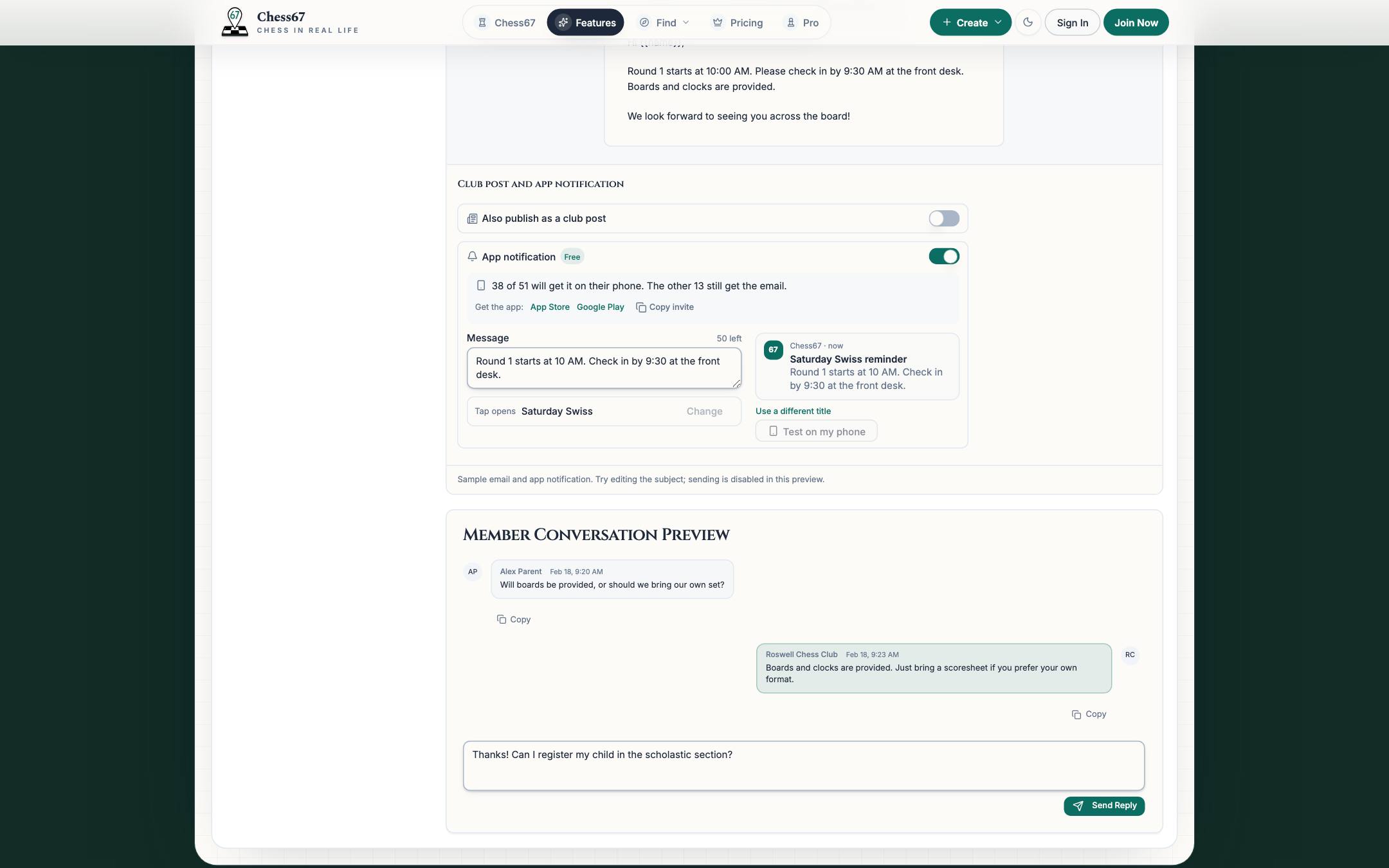
- For an email, write the subject and message. Under the editor, leave App notification on to also notify members who have the Chess67 app. App notifications are free and don't use your email allowance.
- Choose what opens when someone taps the notification: the club post, or a page, event, tournament, or survey from your club.
- For an alert, write a title and a short message. Only members with the Chess67 app get alerts, so share the App Store and Google Play links shown under the message with anyone who doesn't have it yet.
- Send a test to yourself, then send or schedule. If some members already got an app notification from your club today, the confirmation lists them so you can decide whether to send anyway.
What it looks like
After you finish
The email or alert is sent or scheduled for the selected members. If you send an app notification late at night, the confirmation offers to schedule it for 8 AM instead. Open a sent message to see how many phones it was sent to and how many members opened it.